Dataset Padding
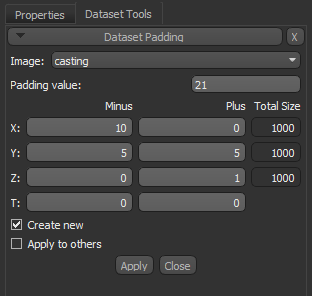
You can add padding to volumetric image data, regions of interest, and multi-ROIs. Right-click the required structured grid in the Data Properties and Settings panel and then choose Modify and Transform > Padding in the pop-up menu to open the Dataset Padding panel, shown below.
Dataset Padding panel
You can also choose the pop-up menu item Make a Padded Copy. In this case, a series of dialogs will then appear that let you choose the padding for the X, Y, and Z axes, as well as a value for the added voxels.
You can choose a value for the padded area voxels, as well as add padding to the minus and/or plus side of each axis.
 How to Add Padding to a Dataset
- Right-click the required dataset in the top section of the Data Properties and Settings panel and then choose Padding in the pop-up menu.
The Dataset Padding panel appears on the Dataset Tools tab.
- Select the item to which you want to add padding in the drop -down menu, if required.
- Choose a Padding value.
- Add padding to the X, Y, Z axes or to the time step, as required.
- Check the Create new option, if required. If checked, a new dataset will be created with the selected changes.
- Click the Apply button.


